
Getting Started
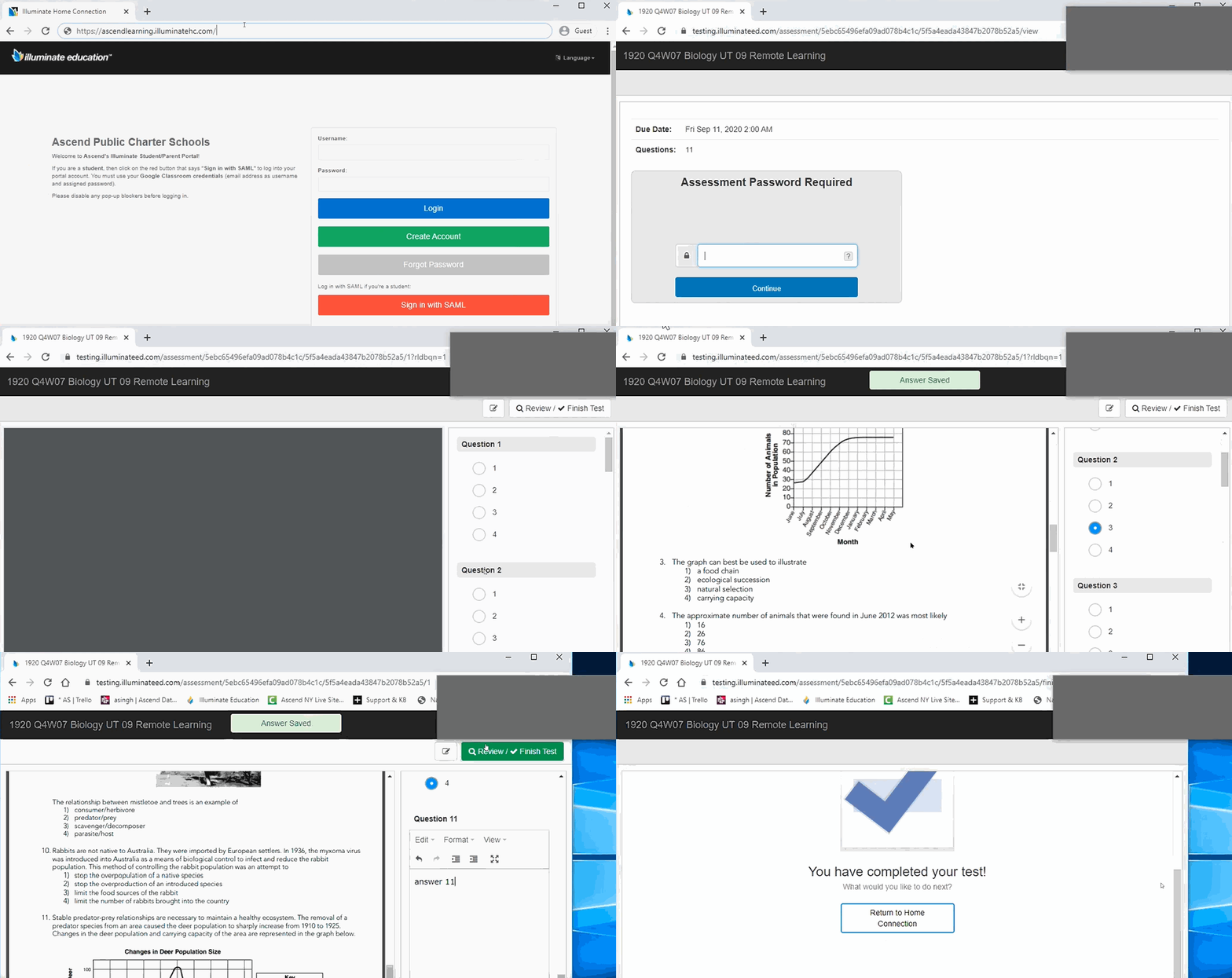
- Go to the Illuminate Portal: https://ascendlearning.illuminatehc.com/
- Click on the red button "Sign in with SAML"
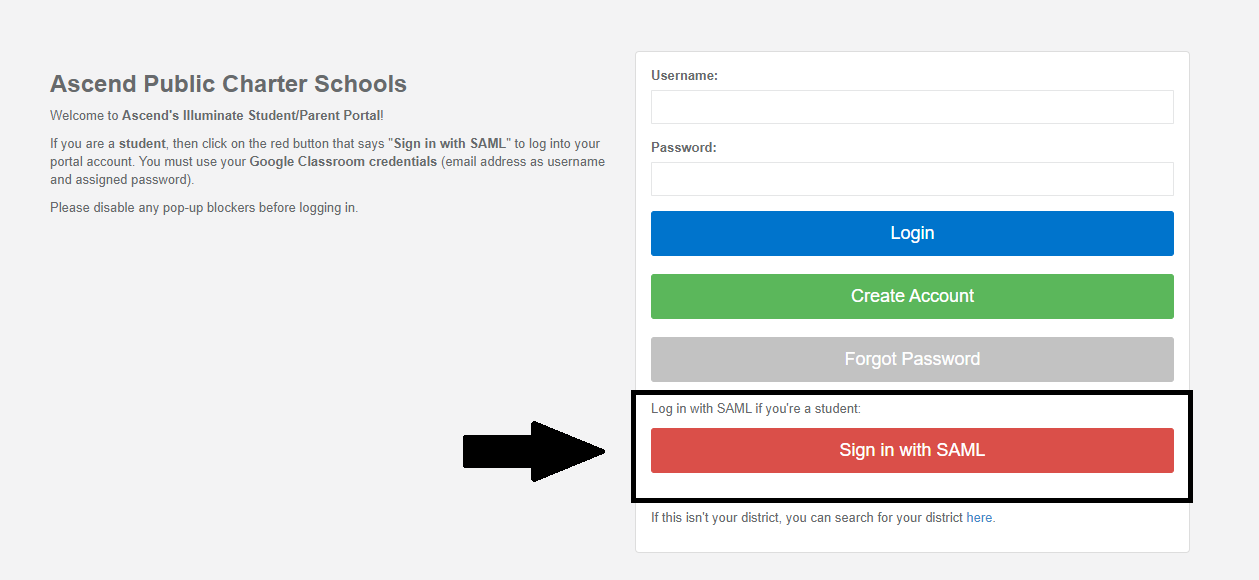
- In the pop-up window, enter your Ascend Scholars email [first name.last name@scholars.ascendlearning.org] as the username and click "Continue"; Enter your password and click "Continue"
- If you already signed onto Google Classroom or OneLogin, you will get a pop-up window that will automatically sign you in.
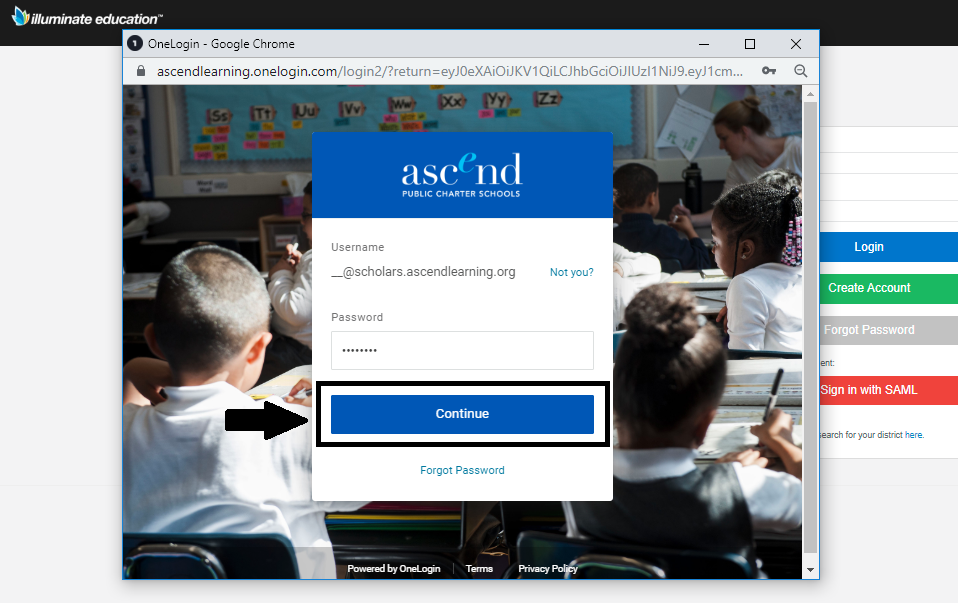
- If you already signed onto Google Classroom or OneLogin, you will get a pop-up window that will automatically sign you in.
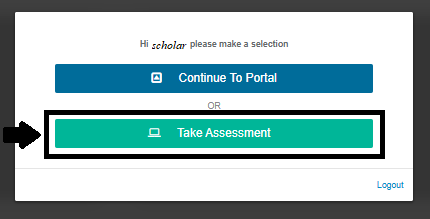
- To take an assessment, click the green button "Take Assessment"
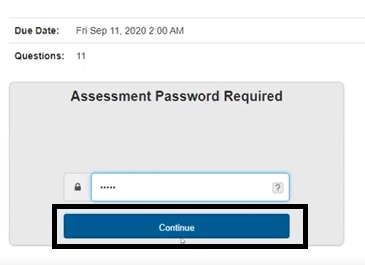
- Select the assessment and then enter the password from your teacher, then click "Continue"
- Then click green "Begin Test"

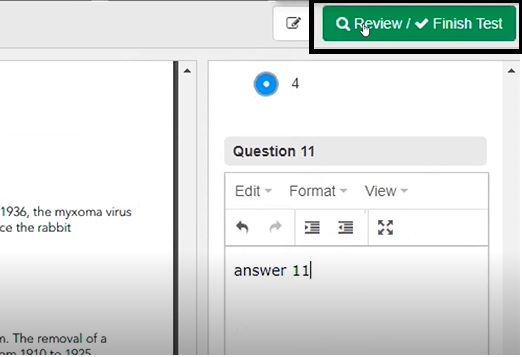
- When you are finished with the test, make sure you click "Review/Finish Test" to see your answers.
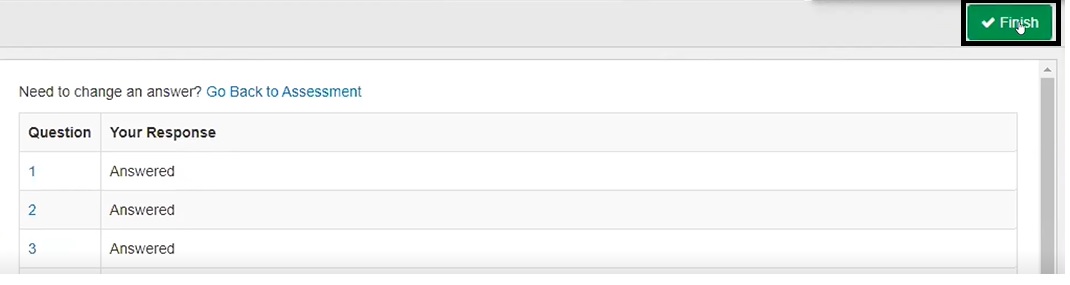
- After you are done reviewing your answers, finally click "Finish"
Here is a quick video of the entire process:
Additional Resources:
Comments
0 comments
Article is closed for comments.